> ## Documentation Index
> Fetch the complete documentation index at: https://how.forget.work/llms.txt
> Use this file to discover all available pages before exploring further.
# ✏️ Tasks List
> Manage your tasks with ease
 ## Overview
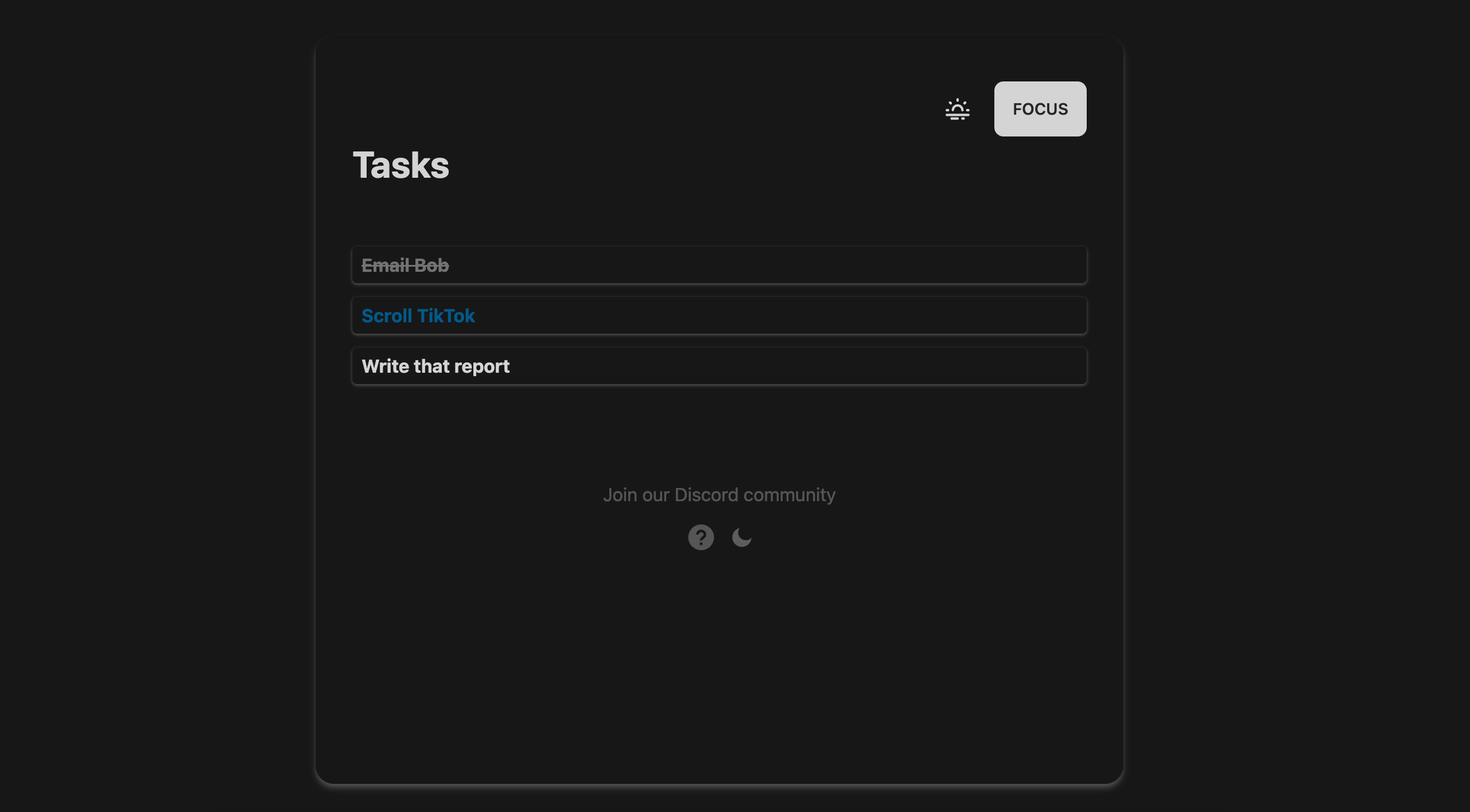
The List is where you can add, edit, and delete tasks.
## Add a task
There are two ways to add a task:
### 1. Click the "Plus" button
You can hover at either the bottom of the list...
## Overview
The List is where you can add, edit, and delete tasks.
## Add a task
There are two ways to add a task:
### 1. Click the "Plus" button
You can hover at either the bottom of the list...
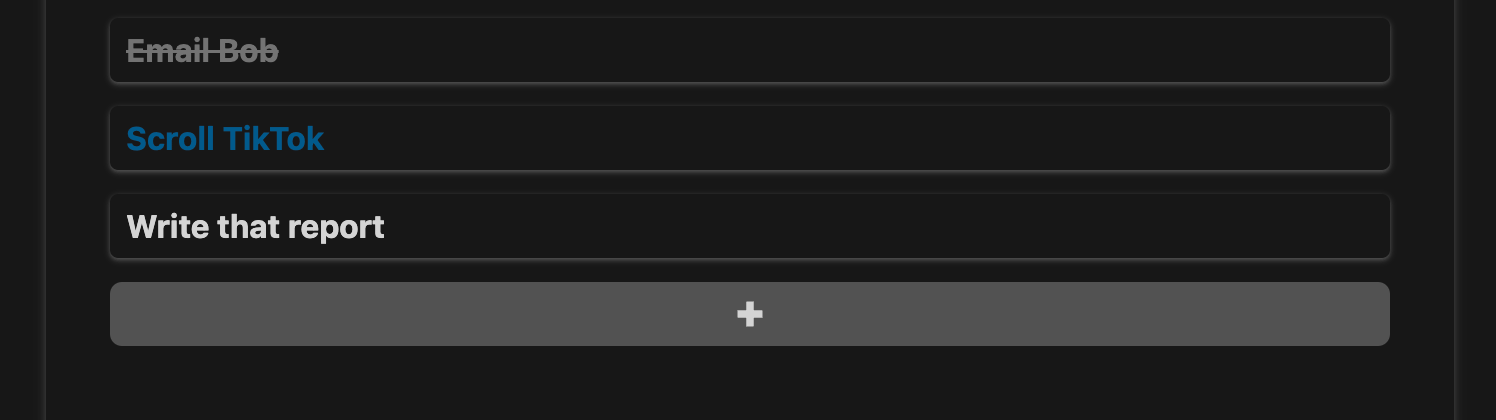 ... or the top of the list...
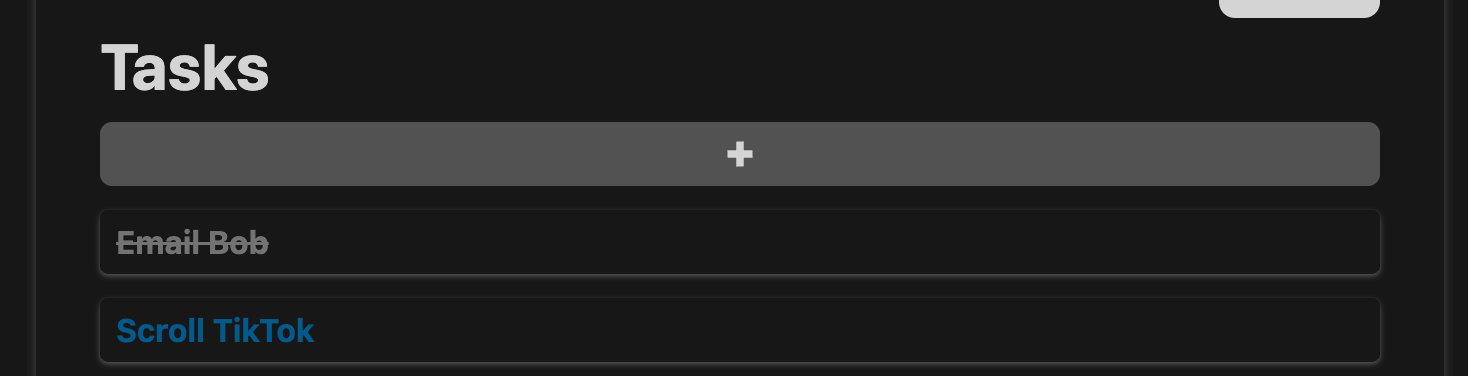 ... to reveal the "Plus" button. Clicking it will add a new task to the list.
### 2. Press `Enter` or `return` on your keyboard
Click on any existing task to start editing it. Then, press `Enter` or
`return` on your keyboard to add a new task below it.
## Edit a task
Simply click on any task to start editing it.
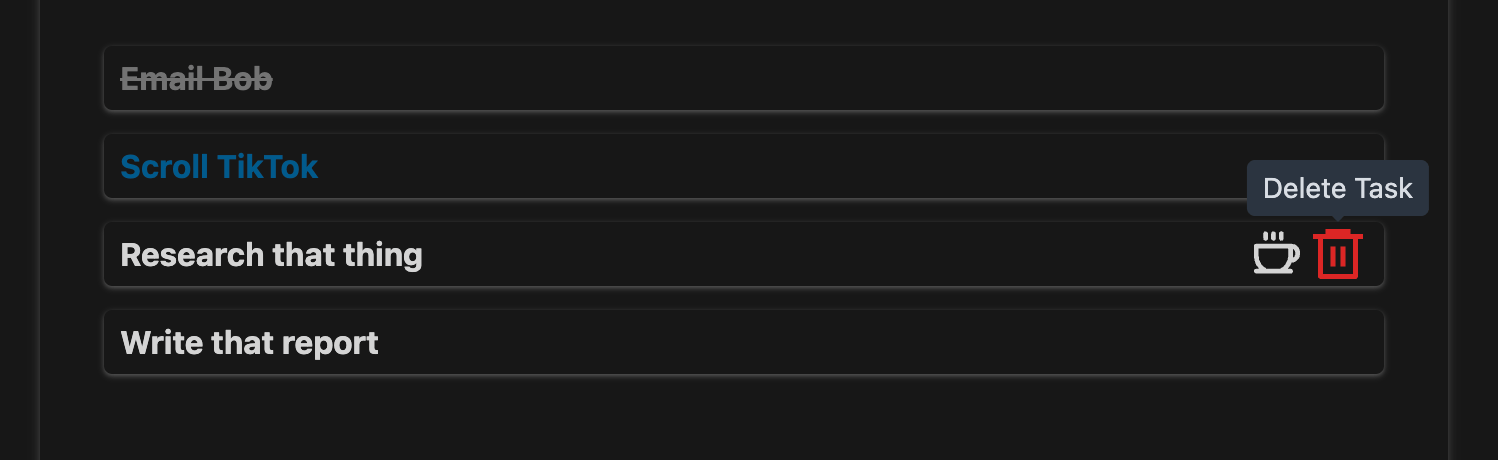
## Delete a task
Hover over a task to reveal the "Delete" button. Clicking it will delete
the task.
... to reveal the "Plus" button. Clicking it will add a new task to the list.
### 2. Press `Enter` or `return` on your keyboard
Click on any existing task to start editing it. Then, press `Enter` or
`return` on your keyboard to add a new task below it.
## Edit a task
Simply click on any task to start editing it.
## Delete a task
Hover over a task to reveal the "Delete" button. Clicking it will delete
the task.
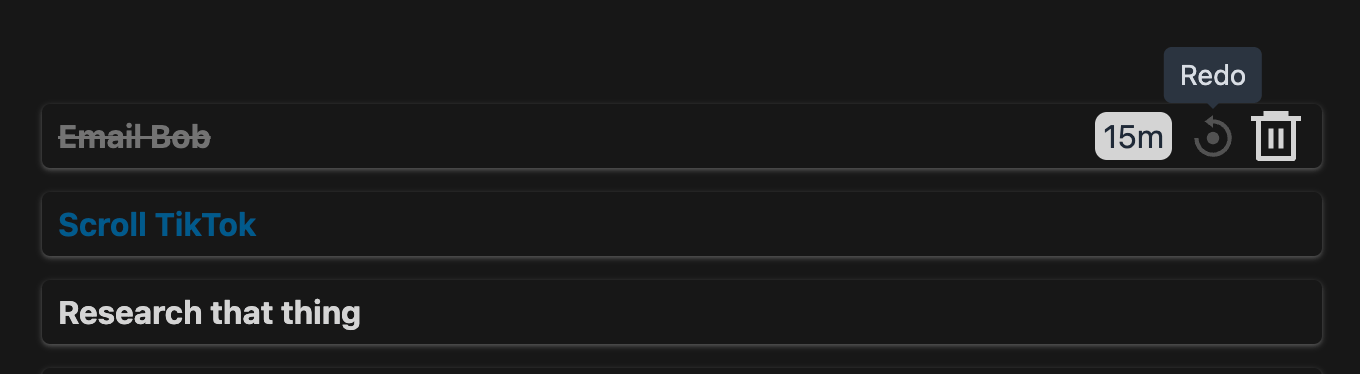
 ## Redo a completed task
Hover over a completed task to reveal the "Redo" button. Clicking it
will mark the task as incomplete.
## Redo a completed task
Hover over a completed task to reveal the "Redo" button. Clicking it
will mark the task as incomplete.
 The Focus Time for a "Redo" task will be computed as the max of the previous
focus time and the current focus time.
## Reorder tasks
Simply drag and drop a task to reorder it.
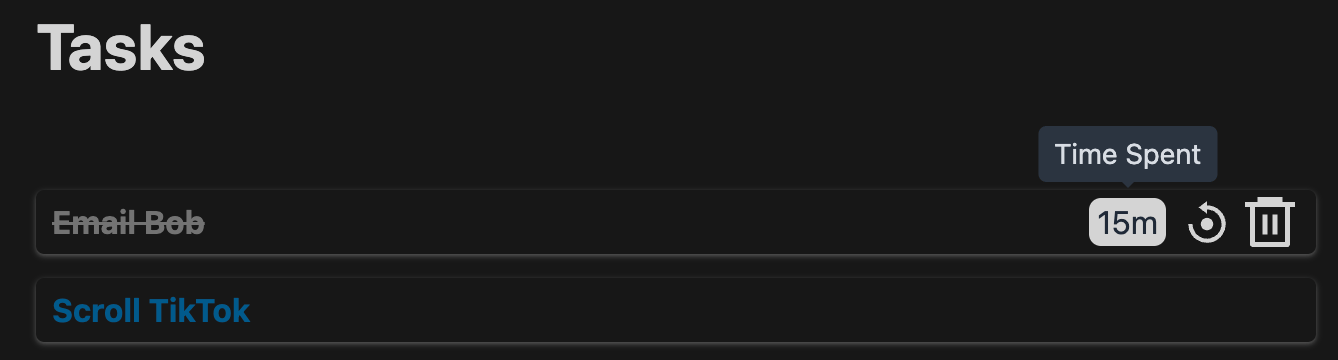
## Time Track
Hover over a completed task to reveal the time spent on it.
The Focus Time for a "Redo" task will be computed as the max of the previous
focus time and the current focus time.
## Reorder tasks
Simply drag and drop a task to reorder it.
## Time Track
Hover over a completed task to reveal the time spent on it.