> ## Documentation Index
> Fetch the complete documentation index at: https://how.forget.work/llms.txt
> Use this file to discover all available pages before exploring further.
# ☕️ Breaks
> Breaks can take you a long way
 ## Why use breaks?
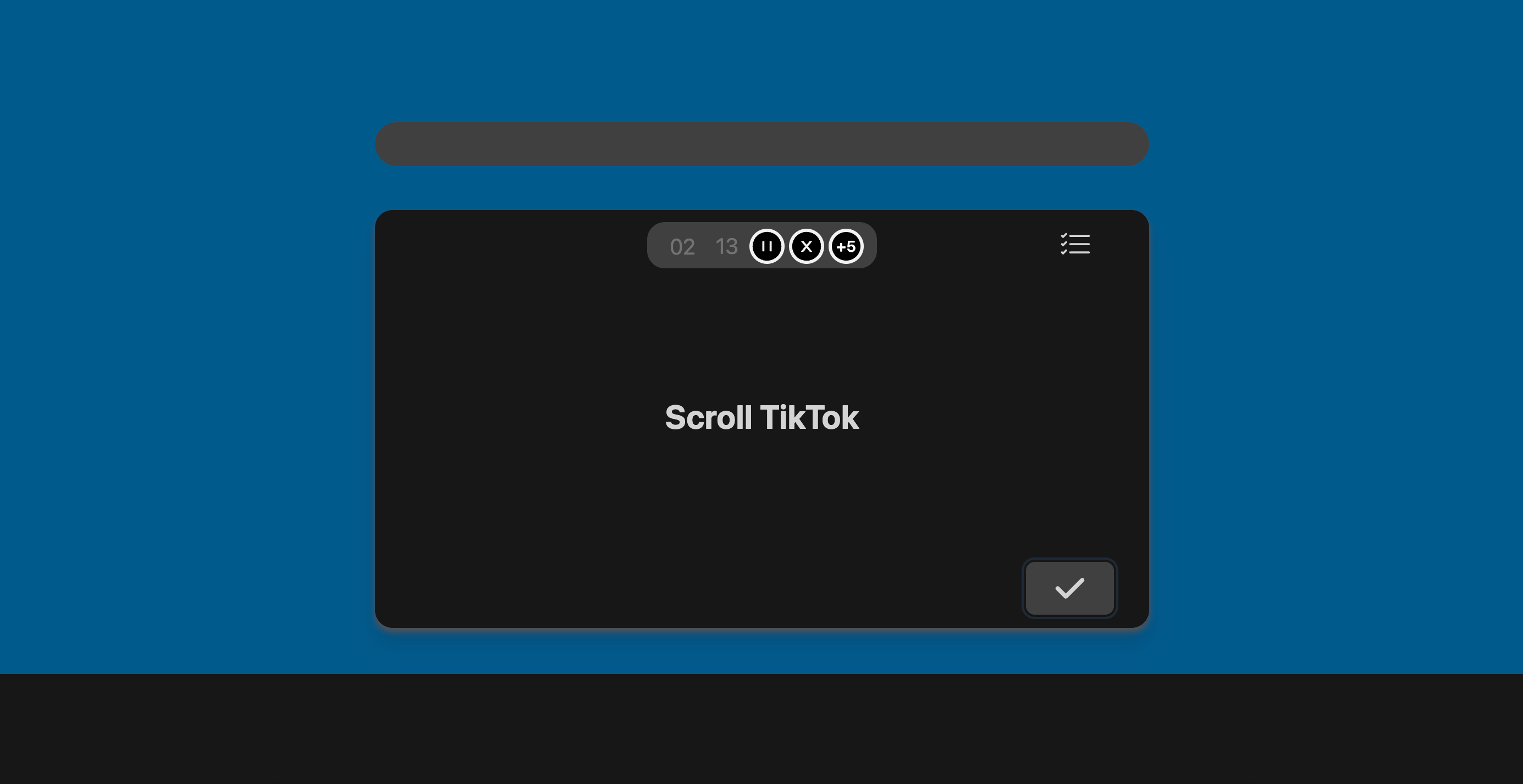
Taking breaks is important.
However, for ADHD brains, it can be difficult to remember to come back
to the task you were working on.
This is where the Breaks feature comes in.
We encourage you to plan out breaks ahead of time, so you can enjoy them
without worrying about whether you'll remember to come back to your task.
## How does it work?
There are two ways to mark a task as a break.
### 1. Via Quick Add
Simply press `n` to open the [Quick Add](/features/quick-add) window.
## Why use breaks?
Taking breaks is important.
However, for ADHD brains, it can be difficult to remember to come back
to the task you were working on.
This is where the Breaks feature comes in.
We encourage you to plan out breaks ahead of time, so you can enjoy them
without worrying about whether you'll remember to come back to your task.
## How does it work?
There are two ways to mark a task as a break.
### 1. Via Quick Add
Simply press `n` to open the [Quick Add](/features/quick-add) window.
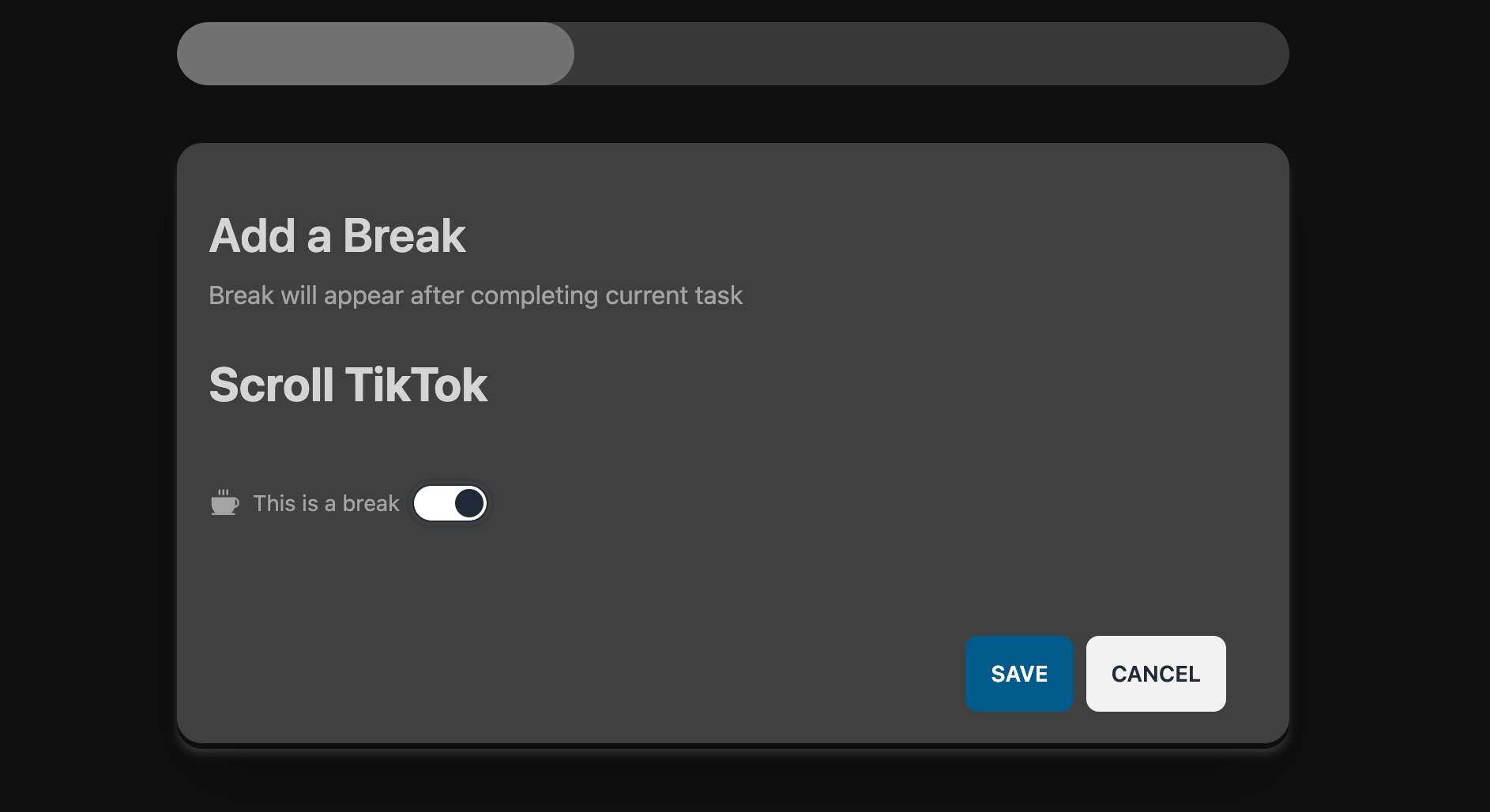 Toggle "This is a break" to set your next task as a break.
### 2. Via List View
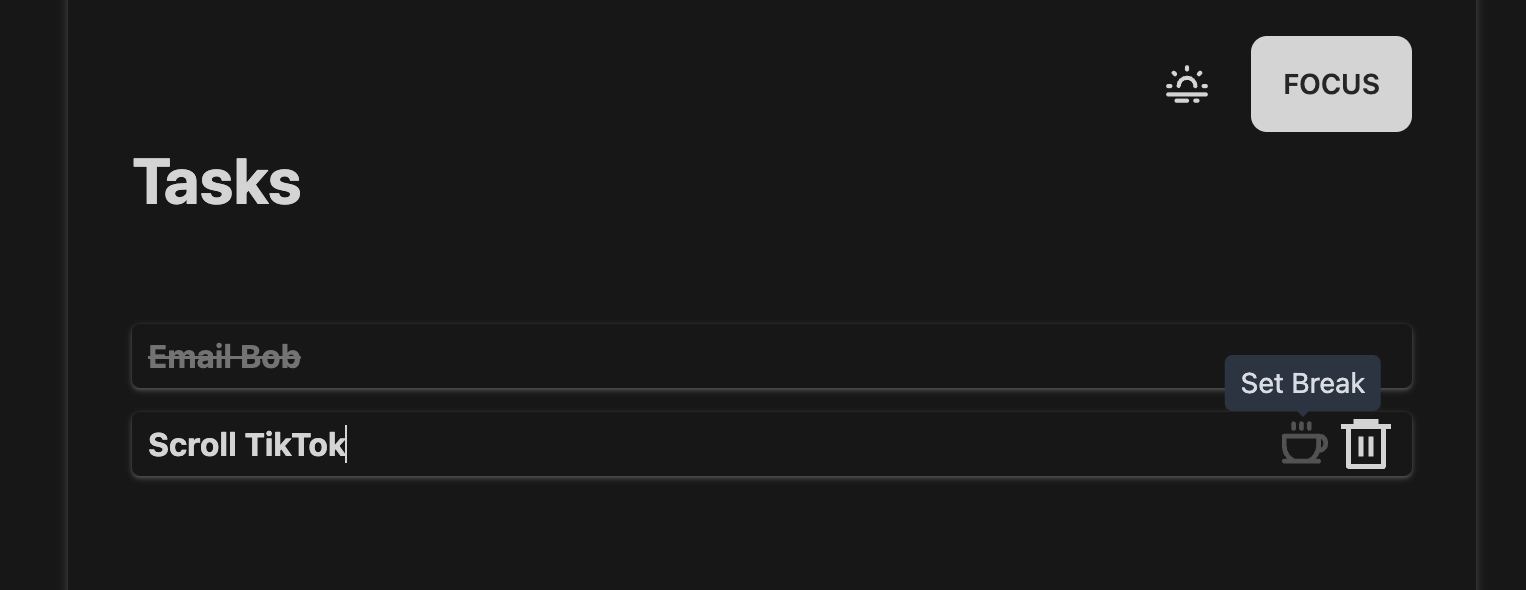
Go to your [List](/features/list) and hover over a task to reveal the
"Break" button.
Toggle "This is a break" to set your next task as a break.
### 2. Via List View
Go to your [List](/features/list) and hover over a task to reveal the
"Break" button.